Implementing Business Rules through Transformations
In this article, I’ll continue from the article Excel Power Query – Introduction and illustrate some transformations available in the Query Editor.
I’ll begin with the data loaded into the Query Editor.

Remove Columns
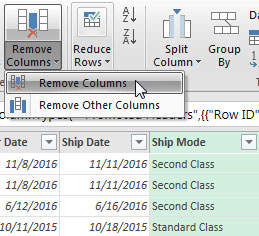
Since I don’t need the field Ship Mode, I’ll use “Remove Columns” to remove this column.

Split Column
Now, I’ll use “Split Column” to separate the Customer’s first and last names.


Group By
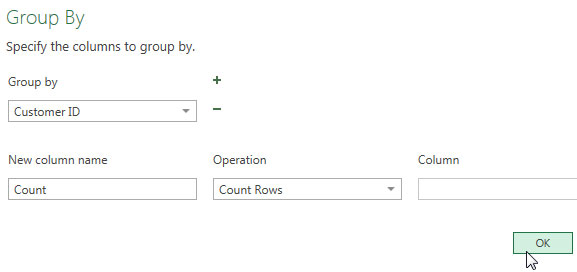
Now, I’ll use the “Group By” feature to collapse orders by CustomerID to see the order count by customer.


Undo
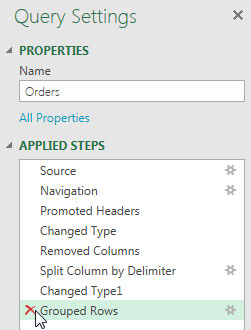
I’d like to undo the last group by step, so I’ll use the Query Settings to remove that step.

Now, I’ll delete the last step.
Change Data Type
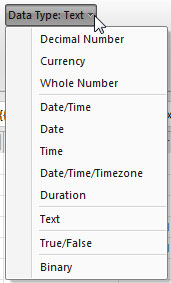
Should I need to change any of the field’s data type, I can click the column and “Data Type” to select a new data type.
Keep/Remove Rows
Also, I can decide to keep or remove certain rows of data.

More Transformations
For more transformation options, select the “Transform” tab.

 TechMbaBi